JPG vs PNG vs WebP
I uploaded a logo to a website, and it had this ugly white box around it.
JPG vs PNG vs WebP: Which Image Format Should You Use?
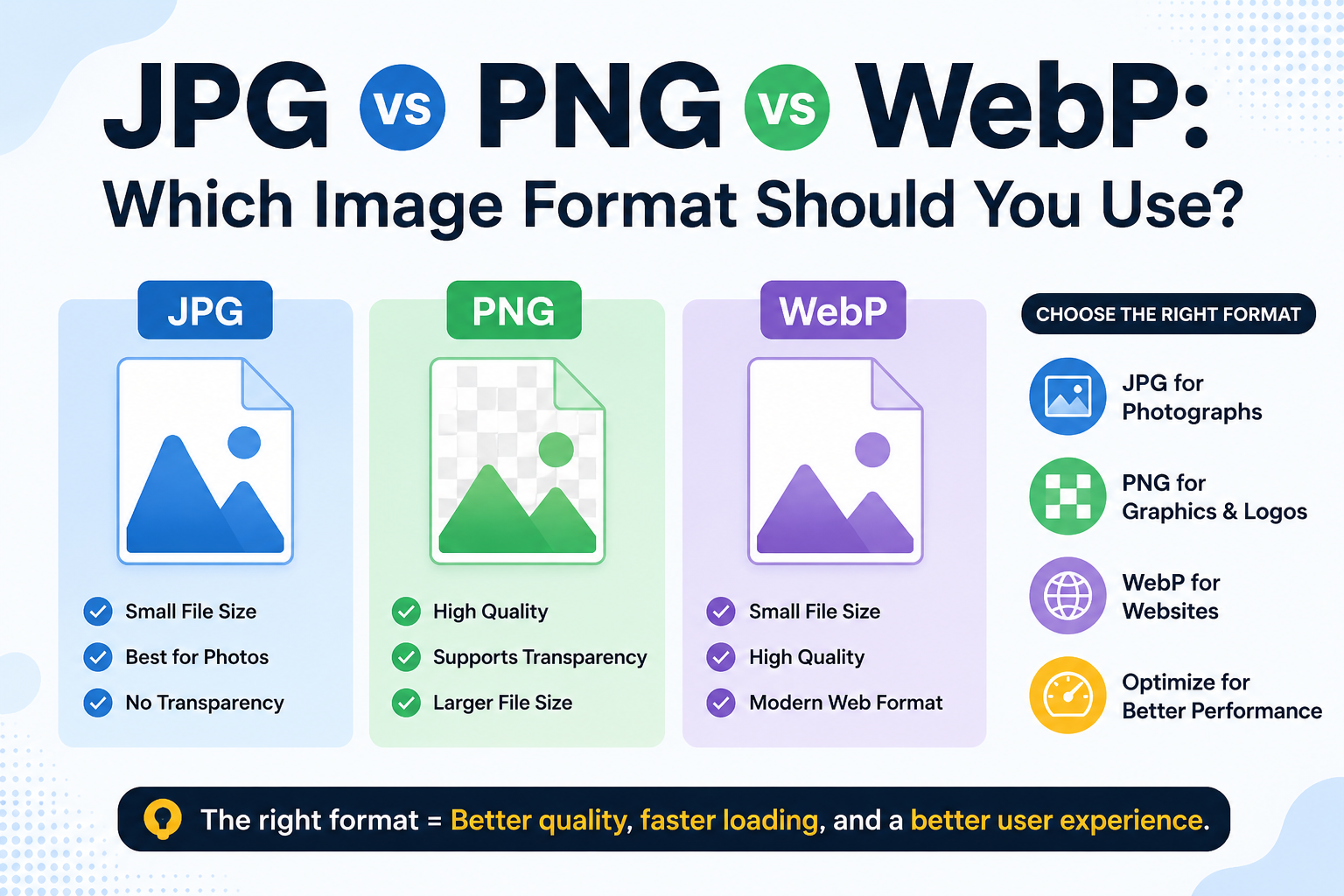
So here's a situation most of us have been in. You've just finished editing a photo or designing a logo. You hit "Save As," and suddenly you're staring at a dropdown list: JPG, PNG, WebP, TIFF, BMP, and you pick JPG because that's what you've always done.
I used to do the same thing. Until one day, I uploaded a logo to a website, and it had this ugly white box around it. The background didn't match. That's when I realized not all image formats are the same, and picking the wrong one actually costs you. It affects your website speed, image quality, and how your graphics look on different backgrounds.
What Even Is an Image Format?
Think of image formats like different ways of packing a suitcase. Some people fold their clothes tightly (smaller size, some wrinkles). Others use vacuum bags (even smaller ones, but you can't reopen without losing quality). And some pack everything neatly without compressing at all (larger, but nothing gets ruined).
JPG, PNG, and WebP are just three different "packing" methods for your image data. Each has a specific purpose, and understanding that purpose saves you a lot of headaches.
JPG (JPEG) — The Old Reliable
JPG has been around since 1992. It's the widely used image format. When you take a photo on your phone or camera, it's almost certainly saved as a JPG.
How It Works
JPG uses a compression method that reduces file size by removing some image data. That means that when you save an image as a JPG, some data is permanently discarded to make the file smaller. The more you compress the image, the worse the quality becomes. Open a JPG, edit it, save it again, and you lose a little more quality each time.
Where JPG Shines
- Photos and real-life images — landscapes, portraits, food photography, product photos
- Situations where file size matters — email attachments, social media posts
- Any image with lots of colors and gradients — JPG handles these beautifully
- Universal compatibility — every browser, device, email client, and app supports JPG without question
Where JPG Falls Short
- Transparent backgrounds — JPG does not support transparency. That white box I mentioned? That was a JPG logo on a colored background.
- Text and sharp edges — fine text in a JPG looks blurry and pixelated
- Repeated editing — every save cycle further degrades the image.
- Screenshots and diagrams — the compression artifacts make text unreadable.
JPG Pros & Cons
✅ Pros❌ Cons
Very small file sizes, no transparency support
Universal compatibility, Lossy quality (degrades with each save)
Great for photos, bad for text and sharp edges
Adjustable compression levels. Compression artifacts are visible at low quality.
Fast website loading is not ideal for editing workflows.
PNG Format
PNG (Portable Network Graphics) was introduced in the mid-1990s as a more capable alternative to GIF for web graphics. It became the go-to format for designers and web developers who needed clean, sharp images, especially those with transparent backgrounds.
How It Works
PNG uses a compression method that preserves the original image quality. No data is thrown away. What you save is exactly what you get back, every single time. This is why PNG files are larger than JPGs — they're keeping every single pixel intact.
Where PNG Shines
- Logos and icons — crisp edges, transparent backgrounds, no quality loss
- Screenshots — text stays sharp and readable
- Infographics and graphics with text
- Images that need editing multiple times — safe to open, edit, and save without quality loss
- Any image where a transparent background is needed
Real example: I was building a website where the logo needed to sit atop sections of different colors — white, navy, and dark gray. A PNG with a transparent background handled all three perfectly. A JPG would've looked broken on two of them.
Where PNG Falls Short
- File size — PNG files are significantly larger than JPG. A PNG photo can be 5–10x larger than the same photo in JPG.
- Not ideal for photos — for landscape photos, PNG offers no visual benefit but increases file size significantly.
- Slow load times — larger files mean slower pages, which hurts your SEO
PNG Pros & Cons
✅ Pros❌ Cons
Lossless — no quality loss ever, Large file sizes
Supports transparency. Overkill for photos
Sharp text and hard edges. Slower page load if overused
Safe for repeated editing, not always the best for web performance
Great for logos, icons, screenshots. Older versions have limited color options.
WebP — The Modern Choice
WebP is the newest of the three. Google developed it in 2010 specifically to speed up websites. It's the format Google recommends for web use, and for good reason.
How It Works
WebP is one of the most versatile image formats available today. WebP supports both lossy and lossless compression, as well as transparent backgrounds like PNG. Basically, it tries to do everything JPG and PNG do, but better and with smaller file sizes.
Google's research shows that WebP images can be 25–34% smaller than JPEG files at similar quality levels, while lossless WebP files are typically around 26% smaller than PNGs. That's not a small difference those savings add up fast on a website with hundreds of images.
Even Netflix noticed: Netflix reported 20% bandwidth savings after switching to WebP for their mobile apps.
Where WebP Shines
- Websites and blogs — the best all-around choice for web performance
- E-commerce product images — smaller files load faster, fewer customers bounce.
- Any image that would normally be a JPG or PNG on a website
- WordPress sites — WordPress has full built-in support for WebP
Where WebP Falls Short
- Email clients — many email apps don't support WebP yet, so JPG or PNG is safer for newsletters
- Older browsers — though this is mostly a non-issue now, WebP is supported by around 94% of browsers, including Chrome, Firefox, and Edge
- Print workflows — for print-ready files, stick to TIFF or high-quality JPG.
- Some image editing tools — older versions of Photoshop or other editors may struggle with WebP
WebP Pros & Cons
✅ Pros❌ Cons
Smallest file sizes (25–34% smaller than JPG). Not supported by all email clients.
Supports transparency. Some older tools don't handle it well
Both lossy and lossless compression are not ideal for print
Supports animation (like GIF). Slightly newer, so legacy compatibility can be an issue
Great for SEO and Core Web Vitals, but less universally familiar to beginners
Head-to-Head Comparison Table
FeatureJPGPNGWebP
Compression Type Lossy Lossless Both
File Size Small Large Smallest
Transparency ❌ No ✅ Yes ✅ Yes
Best For Photos, Logos, graphics, Web (everything)
Browser Support 100% 100% ~94%
Animation Support ❌ No ❌ No ✅ Yes
Re-editable Quality degrades ✅ Yes ✅ Yes (lossless)
SEO / Speed Good Poor (large files) Best
Email Compatibility ✅ Yes ✅ Yes ❌ Often no
Real-World Scenarios: Which One Should You Actually Use?
This is where most guides lose you with vague advice. Let me be specific.
You're uploading a product photo to your online store: → Use WebP. Smaller size, faster load times, better conversion rates.
You're designing a logo that goes on multiple colored backgrounds: → Use PNG. Transparent background is non-negotiable here.
You're sending an image in an email newsletter: → Use JPG. It's universally supported and safe.
You're taking a screenshot to share a tutorial: → Use PNG. Text stays sharp. Readers can actually read it.
You're uploading a blog header image to WordPress: → Use WebP. Google loves it, and your page will load faster.
You're printing something: → Use high-quality JPG (90+ quality) or TIFF. WebP and PNG aren't designed for print workflows.
How WebP Affects SEO (And Why You Should Care)
Page speed is a direct Google ranking factor. Images usually make up the largest portion of a webpage's size. Images account for 45–65% of a website's total page weight. So choosing a smaller format isn't just an aesthetic decision; it directly affects how Google ranks your site.
WebP images are optimized for speed, which can positively affect Largest Contentful Paint (LCP) performance. A better LCP score = faster perceived load = better rankings and user experience.
Properly optimized images reduce loading times and improve Core Web Vitals performance, including LCP.
If you're using WordPress, converting your images to WebP is one of the easiest SEO wins you can get without touching a single line of code. Plugins like ShortPixel, Imagify, or EWWW Image Optimizer do this automatically.
Common Mistakes People Make
1. Using PNG for every photo. This is extremely common. People think "higher quality = PNG" and end up with massive files that slow down their entire site. For photos, JPG or WebP are almost always better.
2. Using JPG for logos. If your logo has a transparent background and you save it as JPG, you'll get a white or colored box around it. Always use PNG or WebP for logos.
3. Not compressing at all. Even if you pick the right format, an uncompressed 5MB image is a problem. Use tools like Squoosh (free, by Google), TinyPNG, or ImageOptim to compress before uploading.
4. Ignoring WebP entirely. A lot of website owners still haven't switched to WebP because they learned PNG and JPG years ago and never looked back. That's leaving performance on the table for no reason.
5. Saving a JPG as PNG and calling it "lossless." This one surprised me when I learned it. If you take a JPG (already compressed and lossy) and save it as PNG, you don't recover any lost quality. The damage is already done. You end up with a large file that maintains the same quality as the original JPG.
Free Tools to Convert Between Formats
You don't need expensive software. Here are the tools I actually use:
- Squoosh (squoosh.app): Free, browser-based, by Google. Shows you a live side-by-side comparison as you compress. Excellent for WebP conversion.
- TinyPNG / TinyJPG: Great for batch compressing PNG and JPG files
- Convertio: Supports converting between almost any format, including WebP, JPG, PNG, and AVIF.
- GIMP: Free Photoshop alternative with full WebP support
- Photoshop: Supports WebP natively in newer versions.
Final Thoughts
Here's the honest summary after years of dealing with slow websites, broken logos, and blurry screenshots:
- JPG for photos you're sharing on social media or via email
- PNG when you need transparency or sharp graphic edges
- WebP for anything going on a website
If you're building or running a website in 2026 and you're not using WebP, you're making your site slower than it needs to be. The switch is easier than ever; most modern tools and CMS platforms support it natively.
And the next time someone asks you why their logo has a white background on their website. You'll know exactly what to tell them.
FAQs
Q: Is the WebP format better than the PNG format?
For web use, yes. WebP provides the same transparency support as PNG, but with significantly smaller file sizes. However, for offline editing workflows or print, PNG may still be the better choice.
Q: Can I use WebP for all images on my website?
Yes, for the most part. Since around 94% of browsers now support WebP, it's safe for general web use. For email newsletters or legacy system compatibility, stick to JPG or PNG.
Q: Can converting JPG format to PNG format improve image quality?
No. If an image was already compressed as JPG, converting it to PNG doesn't restore the lost data. It just makes the file larger without improving quality.
Q: Which format loads fastest on a website?
WebP typically loads fastest because it produces the smallest file sizes at comparable quality levels — around 25–34% smaller than JPG and 26% smaller than PNG.
.png)
Image Toolz
CEO / Co-Founder
I am a software engineer, web developer, and Google AdSense expert with two years of experience. I created a free image tools website to provide easy and accessible image tools for everyone.
Popular Tools
Recent Posts